
General eSIM Management Issues
What should I do if I can't delete a Gohub eSIM from my device?
If you're having trouble deleting a Gohub eSIM from your device, here's a breakdown of the steps and what to do if you encounter issues:
1. General Deletion Steps
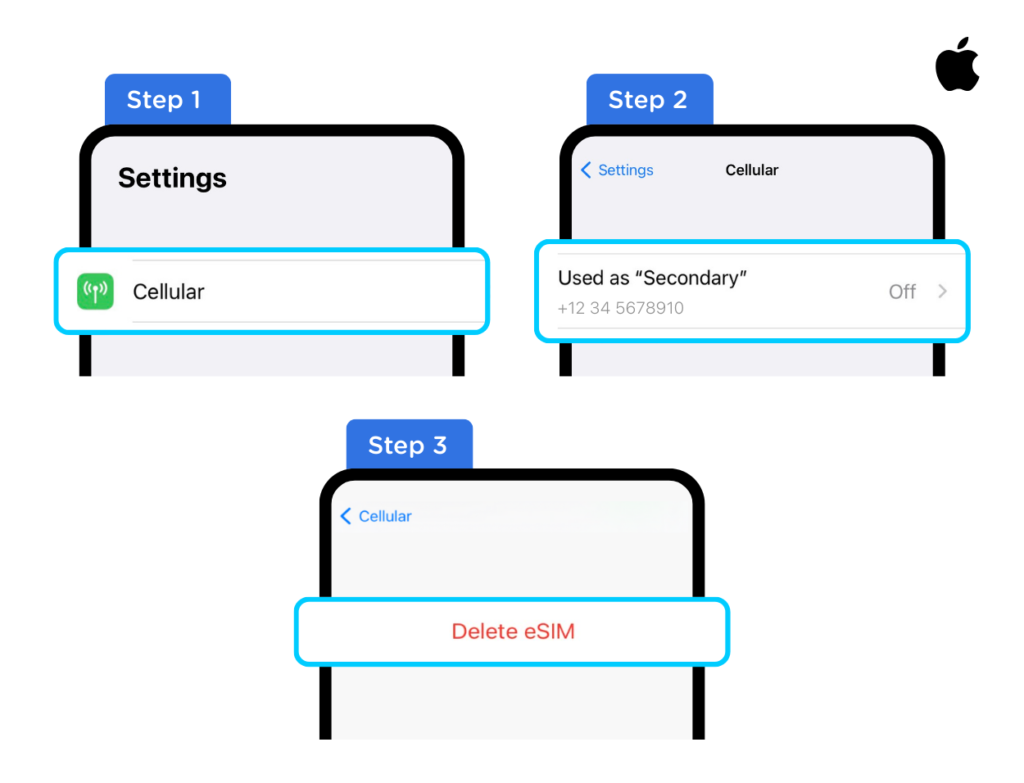
For iOS
-
Go to Settings > Cellular.
-
Select the eSIM you want to remove.
-
Scroll down and tap "Delete eSIM" or "Delete Cellular Plan."
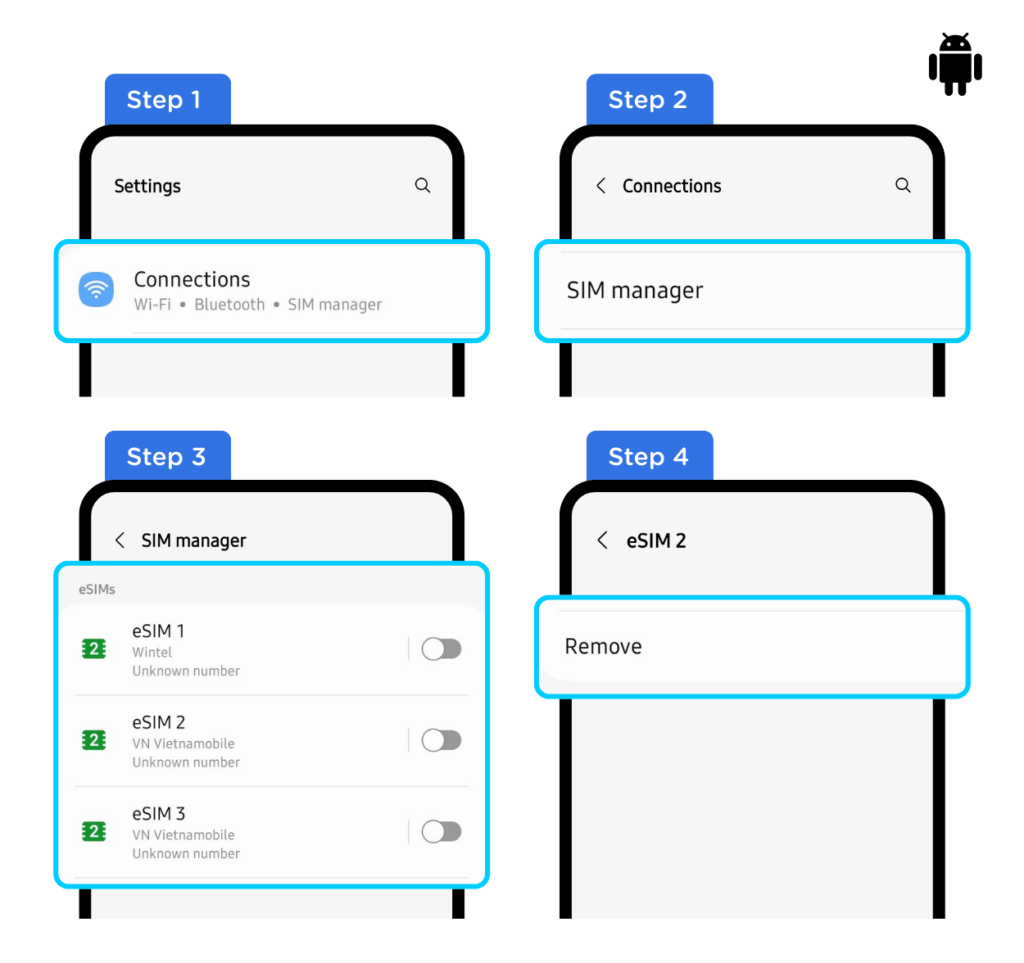
For Android
-
Go to Settings > Connections.
-
Choose "SIM card manager."
-
Select the eSIM you want to remove.
-
Select "Remove."
2. Troubleshooting
-
If the deletion option is grayed out or unavailable: Restart your device: A simple restart can often resolve temporary software glitches.
-
Check for software updates: Ensure your device's operating system is up to date. Outdated software can sometimes cause compatibility issues.
-
Network issues: Ensure you have a stable network connection, sometimes a network connection is needed for the device to properly communicate with the carrier's servers.
-
If you still cannot delete the eSIM: Contact Gohub Customer Support: This is the most important step. They can provide specific assistance and troubleshoot the issue. Here's how to contact them based on the search results.
-
If you have any further questions or concerns, feel free to reach out to our support team at cs@gohub.com or via WhatsApp at +1 (302) 899-2888. Alternatively, you can use this link to quickly access our services: https://wa.me/+13028992888. We're here to assist you.
-
Important Notes from Gohub: Gohub notes that once an eSIM is deleted from a device, it cannot be reinstalled.
-
They also state that they are unable to assist with the recovery of a deleted eSIM.
-
Carrier-Specific Issues: In some rare cases, the carrier that provided the eSIM profile may have to provide assistance.
3. Key Considerations
-
eSIM limitations: Be aware that eSIMs can have limitations, and some actions, like deleting them, can be irreversible.
-
Carrier support: If you suspect a carrier-related issue, contacting your mobile carrier's support may also be helpful.
How do I reset my network settings to resolve eSIM issues?
1. Troubleshooting
Resetting your network settings can often resolve connectivity problems, including those related to eSIMs. Here's how to do it on iOS and Android:
For iOS
-
Go to Settings: Open the Settings app.
-
Tap General: Select "General."
-
Scroll Down and Tap Transfer or Reset iPhone/iPad: Select "Transfer or Reset iPhone/iPad".
-
Tap Reset: Select "Reset."
-
Tap Reset Network Settings: Select "Reset Network Settings."
-
Enter Your Passcode: You'll be prompted to enter your device's passcode.
-
Confirm: Confirm the reset.
For Android
(Steps may vary slightly by device and Android version)
-
Go to Settings: Open the Settings app.
-
Tap General Management or System: The exact option may vary.
-
Tap Reset or Reset Options: Select "Reset" or "Reset Options."
-
Tap Reset Network Settings or Reset Wi-Fi, mobile & Bluetooth: Select the appropriate option.
-
Confirm: Confirm the reset.
2. Why Resetting Network Settings Helps
This action clears your Wi-Fi passwords, cellular settings, and VPN settings, often resolving conflicts that might be affecting your eSIM. This falls into our CX strategy of providing helpful procedures to enhance your customer journey.
Was this article helpful?